This orca ade tutorial walks you through the exact setup I use to run four AI coding agents on the same project at the same time — and it costs nothing.
Orca is a free, open-source agentic development environment.
You download the app, point it at a project, and open as many coding agents as you like side by side.
That is the whole pitch, and it is the reason I keep coming back to it.
Most coding tools give you one assistant in one window, which means your build speed is capped by how fast that single assistant types.
Orca removes that cap.
🔥 Want the exact agent stack I run inside Orca? Inside the AI Profit Boardroom, I've got a full AI coding agents section with step-by-step video tutorials. Plus weekly coaching calls + 2,800+ members building real automations. → Get access here
What Orca Actually Is
Orca is an agentic development environment, which is a longer way of saying it is a workspace built for AI agents rather than for you typing code.
It is free and it is open source, so there is no trial, no seat pricing and no upgrade wall.
When you open it you are looking at terminals, a live preview and an automation panel.
It feels less like a plain code editor and more like a control room where the agents do the typing and you do the directing.
The single most important difference is parallelism.
One assistant in one window means one task at a time, in a queue, while you sit and wait.
Orca lets you run several agents on the same codebase at once, then preview and correct their work visually.
If you have already read my walkthrough of what an Agent OS is, think of Orca as the coding-shaped slice of that same idea.
Orca ADE Tutorial: The Four-Step Setup
The setup is refreshingly boring, which is exactly what you want from a tool you plan to use every day.
Here is the whole thing.
Step 1: Download the app from the Orca GitHub repo
Orca lives on GitHub as an open-source project.
You grab the app from the repo and install it like any normal desktop application.
There is no account creation step and no credit card, because the environment itself is free.
Step 2: Open a project
You have three ways in, and all three take about ten seconds.
You can browse to an existing folder on your machine.
You can clone straight from a GitHub URL.
You can create a brand-new project from scratch if you are starting clean.
I usually clone from a GitHub URL because it means the agents start with the full history and structure already in place.
Step 3: Open an agent in the terminal
Pick your coding agent and start it running inside the project.
Claude Code, Codex, Hermes, Kimi, OpenClaw and Antigravity all work here.
You add, enable and disable agents in the settings, so you are never locked into one vendor.
If you have never run one of these before, my guide to getting Claude Code for free covers the cheapest entry point.
Step 4: Split the terminal
This is the step that changes how you work, and most people skip straight past it.
Right-click in the terminal and choose split terminal right, or split terminal down.
Do it a few times and you have four agents working the same project at once.
I have had Claude Code in one pane and Hermes in another, and you can just as easily add Kimi, Codex, OpenClaw or Antigravity alongside them.
Each pane is its own agent, all pointed at the same codebase.
That is the whole setup, and you can be running in under five minutes.
How To Use Orca Completely Free
There are two honest routes, and neither one adds a penny to your bill.
Route 1: Plug in subscriptions you already pay for
If you already have Codex, Claude Code or OpenClaw, just connect them.
Orca itself is free and open source, so you pay exactly what you were already paying and nothing more.
For most people reading this, that is the fastest path by a mile.
Route 2: A free agent plus a free API
No subscriptions at all? Then run a free agent with a free API.
In my own run I used Hermes with a free API — Ling flash — and it genuinely cost nothing.
People always push back and tell me it is not really free.
It is. Free agent, free API, free environment.
Here is the part that surprised me, and I am including it because it goes against what most people assume.
I gave both setups the same prompt — create a beautiful website for an SEO agency — and on that run the free Ling 3.0 output actually looked a little nicer than the Claude Code version.
That is one test on one day, not a league table.
It is the same kind of hands-on comparison I run in my Goldie Bench testing, and the takeaway is simple.
Do not assume free means worse until you have tried both on your own project.
| Route | What you need | Cost | Best for |
|---|---|---|---|
| Existing subscriptions | Claude Code, Codex or OpenClaw | £0 extra | Anyone already paying for an agent |
| Free agent + free API | Hermes + a free API like Ling flash | £0 total | Complete beginners and testers |
| Mixed | One paid agent, one free agent | £0 extra | Comparing output side by side |
🔥 Want the free agent stack done for you? Inside the AI Profit Boardroom I hand members the full Agent OS zip, 1,000+ done-for-you agent workflows and the free API setups I actually run. Daily tutorials, weekly live coaching, 2,800+ members. → Get the free agent build stack here
Previewing What Your Agents Build
Writing code is only half the job.
Seeing it is where Orca gets genuinely good.
First, get a localhost URL for your project.
If you do not have one, just ask the agent you are coding with to give you one — that is a one-line request and it will spin the server up for you.
Then click the plus sign at the top of Orca and choose new browser tab.
Paste the localhost URL and your project renders right there inside Orca.
Now you are looking at the actual live site while the agents keep working on it.
For mobile app builds you open a mobile emulator instead of a browser tab.
That means an Xcode emulator or an Android Studio virtual device, and one of the two is required for mobile previews.
For a website, a game or a tool, the normal browser tab is all you need.
Element Select And Annotation: The Best Part Of This Orca ADE Tutorial
This is my favourite feature in the whole environment.
Instead of describing a change in words and hoping the agent finds the right bit of the page, you point at it.
Grab an element
You do not like the logo.
Select it, paste it into your coding agent, and give feedback on that one element.
There is zero ambiguity about which thing you mean, which kills the most common source of wasted agent turns.
Annotate the page
Right-click anywhere on the preview and describe the change you want.
Something like "make the headline bright yellow" is enough.
Then you pick your intent: a command, which means change this, or a question, which means what would work better here?
That distinction matters more than it sounds.
Sometimes you want the agent to act immediately, and sometimes you want its opinion before anything changes.
Queue them up
Adding an annotation does not fire it off immediately, and that is the smartest design choice in the tool.
You can mark up ten things across the page, then hit send once and the agent works through the entire list.
No more waiting for one change to finish before you can request the next one.
If you have used OpenClaw's computer use features, this will feel like the same instinct applied to a live preview.
Every Orca Feature Worth Knowing
Here is the full feature list in one table, because a product keyword deserves a proper reference rather than a vibe.
| Feature | What it does | Why it matters |
|---|---|---|
| Split terminals | Runs several agents on one project | You get parallel work instead of one slow queue |
| Live browser preview | Renders your localhost inside Orca | You see the build happening as it happens |
| Element select | Sends one exact element to the agent | Precise feedback means fewer misunderstandings |
| Annotations | Queues many changes and sends them together | You batch ten edits into one pass |
| Mobile emulator | Previews via Xcode or Android Studio | You can build and check real mobile apps |
| Orca Mobile | Connects your phone by QR code | You can drive your projects away from the desk |
| Automations | Schedules recurring agent tasks | Work continues in the background without you |
| Computer use skill | Lets agents control any app on your machine | Agents stop being trapped inside the editor |
| Orchestration skill | Coordinates agents working together | Multiple agents stop stepping on each other |
| Voice | Lets you talk to the agents | Handy for some people, though I do not use it |
Orca Mobile deserves its own mention
You scan a QR code and you can then run your terminals and projects from your phone.
I have not put it through its paces properly yet, so I am not going to oversell it.
But I have tried remote coding through other tools and found it underwhelming every time.
Being able to drive several agents across several projects from a phone looks like the better idea to me.
The automation panel
The automation panel lets you schedule agent tasks on a recurring basis.
You can have it iterate and improve a project every day.
You can have it research a topic and draft a post.
The honest catch is that your computer needs to be running for scheduled work to fire, so this is not a cloud scheduler.
The two skills worth enabling
From the terminal you press enter and the skill installs.
Computer use lets agents control any app on your machine, which is the one that unlocks the most.
Orchestration lets agents coordinate rather than compete.
There is voice in there too, though I personally never use it.
Where Orca Fits Alongside An Agent OS
Orca is excellent at exactly what it is: an environment for parallel coding agents.
It is not trying to run your whole business, and it does not pretend to.
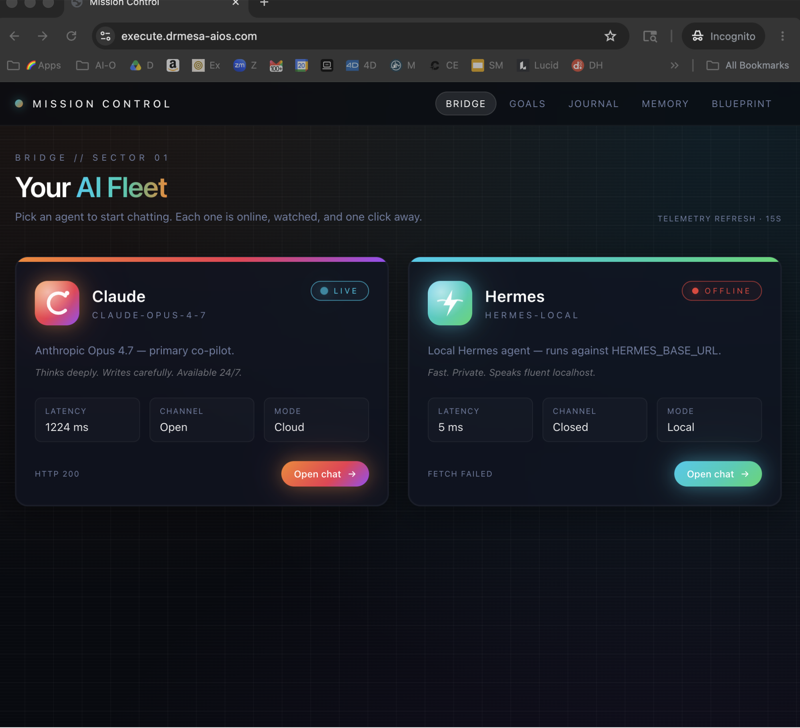
That is the job of an Agent OS — the wider agentic operating system where Hermes runs with shared memory, a mission-control dashboard, and skills for content, SEO, research and publishing.
The two sit together nicely rather than competing.
You use Orca when the work is building software.
You use the Agent OS when the work is running the business around that software.
If you want the Agent OS side set up for you rather than built from scratch, that is exactly what I teach inside the Boardroom.
My Recommended First Project
If you want a project that teaches you the whole tool in one sitting, do this.
Clone a small existing repo or start a fresh one.
Open two agents in split terminals — one paid, one free — and give them the same brief.
Ask one of them for a localhost URL and open it in a browser tab inside Orca.
Then annotate five changes on the live preview and send them in one batch.
By the end of that session you have used the terminal, the split, the preview, element select, annotations and the queue.
That is the entire core loop, learned by doing rather than by reading.
Frequently Asked Questions
Is Orca really free?
Yes. Orca is free and open source, so the environment itself never costs anything. You either plug in subscriptions you already have, or run a free agent with a free API like Hermes with Ling flash. Neither route adds cost.
Which agents can I use in this Orca ADE tutorial setup?
Claude Code, Codex, Hermes, Kimi, OpenClaw and Antigravity among others. You add, enable and disable agents in the settings, and you can run several of them at the same time on the same project.
Do I need to know how to code to use Orca?
You need to be comfortable opening a project and describing what you want. The agents do the typing, and the annotation tools mean a lot of your direction is pointing and describing rather than writing code yourself.
Can I really run four agents at once?
Yes. Split the terminal right and split it down a couple of times, and you have four agents working the same project simultaneously.
How do I preview a mobile app in Orca?
You preview mobile builds using an Xcode emulator or an Android Studio virtual device, and one of those two is required. Websites, games and tools preview in a normal browser tab inside Orca.
Do Orca automations run when my computer is off?
No. Scheduled agent tasks only fire while your machine is running, which is the honest limitation of the automation panel.
About Julian
I'm Julian Goldie — AI entrepreneur, SEO expert, and founder of the AI Profit Boardroom (2,800+ members). I help business owners scale with AI agents, automation, and SEO.
- 400K+ YouTube subscribers
- 7-figure AI agency (Goldie Agency)
- Daily training inside the Boardroom
- Author of multiple AI automation playbooks
→ Get my best AI training inside the AI Profit Boardroom
Also On Our Network
- 🌐 Read on aiprofitboardroom.com
- 🌐 Read on juliangoldieaiautomation.com
- 🌐 Read on aisuccesslabjuliangoldie.com
- 🌐 Read on aimoneylabjuliangoldie.com
Related Reading
- What Is An Agent OS — the wider system Orca plugs into.
- How To Get Claude Code Free — the cheapest agent to run in your first split terminal.
- Hermes Agent Installation Guide — set up the free agent I used for the zero-cost route.
- How To Vibe Code With Antigravity — another agent you can drop into an Orca pane.
The Bottom Line
Download the app, open a project, split the terminal, and let several agents build while you preview and annotate the result live.
Run it on subscriptions you already pay for, or go fully free with Hermes and a free API.
Then pair it with an Agent OS for everything that is not code, and you have a build stack that costs nothing and works while you watch.
That is the whole orca ade tutorial, and it takes five minutes to start.
📺 Video notes + links to the tools 👉